SFG GUI
Editing graphs
Hold the middle mouse button and drag to pan the canvas, including when starting
over an operation or a wire. The mouse wheel scrolls, and Ctrl+wheel zooms.
Press F to zoom to fit the graph.
Press G or choose Show grid in the View menu to toggle the placement
grid. Each point is one screen pixel at every zoom level. When zoomed out,
grid points are subsampled to keep dots at least five pixels apart.
Grid visibility does not change snapping.
The base grid size is GRID in sfg_gui/_preferences.py (8 scene units).
Operation sizes, port positions and stubs are derived from it. Dragging snaps
the visible upper-left corner of an operation’s box, including after rotation;
automatic placement uses the same grid. Saved positions are retained when loading
older graphs: drag a node or apply Automatic layout to align them to this grid.
Ports appear as connection points outside each operation box. Click a port to start a wire, then click a compatible port to connect it, or drag between ports. Click anywhere along a signal to start a branch at that point, then click an input port, or drag from the signal to the input. You can also start at an unconnected input and finish on a signal. Junction dots mark the selected branch points and follow the wire when it moves. Press Escape or right-click to cancel. Each input accepts one signal; an output can feed several inputs.
Twoport WDF adaptors default to 90° rotation: port 0’s input/output pair is on top and port 1’s pair is on the bottom. On both sides, the input is on the left and the output is on the right. Their rectangular boxes have the long edge along these I/O pairs. Threeport boxes are squares with the same side length as the long edge of a twoport box. Automatic layout uses this orientation. Threeport adaptors pair input/output 0 on the left, pair 1 on the right, and pair 2 on the bottom. Stub arrowheads distinguish incoming and outgoing waves. Flipping mirrors the layout; rotation turns it. Explicit saved orientations are retained when loading. Other operations retain inputs on the left and outputs on the right in their default orientation.
Choose Automatic layout from the toolbar or Edit menu, or press Ctrl+L,
to arrange operations in signal-flow order. Feedback loops and disconnected
operations are supported. Feedback sections form compact blocks, and parallel
branches occupy separate bands so their operations stay together. Automatic
layout chooses rotation and flip settings for left-to-right forward paths.
Feedback loops whose external input and output meet at the same operation
stack vertically from that entry, with delays in a parallel return lane. Their
Input and Output symbols stay near the entry. Other feedback loops retain a
horizontal forward path, with flipped delays along the return path.
Outputs and Sinks align with the actual port generating their signal, rather
than taking separate rows below the graph. Constants and DontCare operations
are placed near the inputs using them; Sinks can sit on either side of their
producer. These local terminals do not create extra branch bands. Graphs without saved positions are arranged when
loaded; saved positions and orientations are preserved when loading. Newly
added operations use free space.
Signals follow orthogonal routes around operation boxes and reroute when any
operation moves, flips, or rotates. Wires from the same output can share trunks of any length. Filled dots mark
where they branch. Wires from unrelated outputs use separate lanes where possible;
crossings between unrelated wires have no junction dot.
Routing can leave a port sideways when its normal exit is obstructed and keeps
parallel lanes apart where space permits. Aligned ports connect directly when
the segment is clear. Other ports, including unconnected ones, are obstacles.
Otherwise the first bend can occur one grid step beyond the port.
During dragging, unaffected routes are reused. Signals attached to the moved
operation or near its old/new box and ports are rerouted together with their
fanout branches, while unchanged wires reserve their lanes. Releasing the mouse
runs a full routing pass to restore the complete layout optimization.
Placement and routing run in the b_asic._sfg_gui C++ extension, built with
pybind11 by the existing Meson build. It does not depend on Qt. Each editor
retains its graph, operation and port geometry, branches, and route buffers in
one native engine. Python sends changed records and paints only returned path
updates; unchanged paths stay in the engine between events. Native computations
release the Python GIL and serialize access to each engine’s state.
The terminal roles are defined by the extension’s TerminalKind enum and
passed through the GUI adapter. Python contains no separate placement or routing
implementation.
If overlapping operations cover a terminal, a dashed signal marks the blocked connection instead of hiding it; moving the obstruction restores normal routing.
Select operations and press R to rotate clockwise by 90 degrees, or Shift+R to rotate counterclockwise. Rotation is also available in the Edit menu and an operation’s context menu. Labels stay upright, and saved graphs retain rotation as well as position and flip state.
Choose Flip horizontal or Flip vertical in the Edit menu to mirror each selected operation left/right or top/bottom about its own center. Both actions have shortcuts H and V, respectively, and are also available in an operation’s context menu. The axes follow the canvas, including for rotated operations; symbols and labels remain upright. Flips are preserved when saving and loading graphs.
Operation symbols
Operation icons are transparent SVGs rendered directly in the graphics scene, so their edges remain sharp when zooming or exporting at larger sizes. Input and output have pentagonal road-sign outlines with no inner symbol. The point follows the terminal when flipping or rotating the operation. Selection changes the box background and keeps the same icon. Operation glyphs stay upright as their boxes rotate. Delay boxes are 75% of the standard operation size. Small arrowheads on the port stubs show signal direction, including on flipped or rotated operations.
Operation |
Symbol |
|---|---|
Delay |
T |
DontCare / Sink |
Small circular node, without an inner symbol |
Addition / subtraction / multiplication / division |
|
Constant / constant multiplication |
c / k× |
Square root / magnitude / complex conjugate |
√ / |x| / x* |
Minimum / maximum |
min / max |
Symmetric twoport adaptor |
Line with a central dot and two vertical bars |
Series twoport / threeport adaptor |
Horizontal line with a central dot |
Parallel twoport adaptor |
Two vertical bars |
Reflection-free series threeport adaptor |
Series glyph, with a T mark at reflection-free port 1 |
Custom operation |
f(x) |
Adaptor glyphs follow Figures 3.15, 3.18, 3.20 and 3.23 in Studies on Circulator-Tree Wave Digital Filters. The reflection-free T marker sits outside the box between port 1’s input and output stubs. It rotates with that port, independently of the upright central glyph.
The operation palette includes WDF operations and FFT operations groups. Click an operation to insert it; Ctrl+R refreshes all built-in groups.
Module contents
B-ASIC GUI Module.
Graphical user interface for B-ASIC.
Submodules
sfg_gui.main_window module
B-ASIC Signal Flow Graph Editor Module.
This file opens the main SFG editor window of the GUI for B-ASIC when run.
- class b_asic.sfg_gui.main_window.SFGMainWindow(*args, **kwargs)
Bases:
QMainWindow- add_namespace(*args, **kwargs)
- add_operation(*args, **kwargs)
- add_operations_from_namespace(*args, **kwargs)
- auto_layout(*args, **kwargs)
- create_sfg_from_toolbar(*args, **kwargs)
- display_about_page(*args, **kwargs)
- display_faq_page(*args, **kwargs)
- display_keybindings_page(*args, **kwargs)
- exit_app(*args, **kwargs)
- get_operations_from_namespace(*args, **kwargs)
- load_work(*args, **kwargs)
- save_work(*args, **kwargs)
- simulate_sfg(*args, **kwargs)
- update_statusbar(*args, **kwargs)
- view_operation_names(*args, **kwargs)
sfg_gui.arrow module
B-ASIC GUI Arrow Module.
Contains a GUI class for arrows.
- class b_asic.sfg_gui.arrow.Arrow(source_port_button: PortButton, destination_port_button: PortButton, window: SFGMainWindow, signal: Signal | None = None, parent=None)
Bases:
QGraphicsPathItemArrow/connection in signal flow graph GUI.
- Parameters:
- source_port_button
PortButton Source port button.
- destination_port_button
PortButton Destination port button.
- window
SFGMainWindow Window containing signal flow graph.
- signal
Signal, optional Let arrow represent signal.
- parentoptional
Parent.
- source_port_button
- apply_route(points, blocked)
Paint a changed path returned by the persistent native engine.
- branch_prefix(fraction)
Return the shared trunk up to a relative distance along this wire.
- property destination_operation_button: DragButton
The destination DragButton.
- property destination_port_button: PortButton
The destination PortButton.
- fraction_at(position) float
Project a scene position onto this wire and return its length fraction.
- paint(painter, option, widget=None) None
Distinguish unconnected crossings without obscuring branch dots.
- set_destination_operation(destination: Operation) None
Set operation of the destination DragButton.
- Parameters:
- destination
Operation The operation to use as destination.
- destination
- set_source_operation(source: Operation) None
Set operation of the source DragButton.
- Parameters:
- source
Operation The operation to use as source.
- source
- shape() QPainterPath
Make thin signals easy to target when branching or deleting.
- property source_operation_button: DragButton
The source DragButton.
- property source_port: OutputPort
The source OutputPort.
- property source_port_button: PortButton
The source PortButton.
sfg_gui.gui_interface module
B-ASIC GUI interface module.
Contains a GUI class for the interface. Originally generated from QT designer, but now manually maintained.
sfg_gui.precedence_graph_window module
B-ASIC window to show precedence graph.
- class b_asic.sfg_gui.precedence_graph_window.PrecedenceGraphWindow(window)
Bases:
QDialogPrecedence graph window.
- pc
pyqtSignal(*types, name: str = …, revision: int = …, arguments: Sequence[str] = …) -> PYQT_SIGNAL
types is normally a sequence of individual types. Each type is either a type object or a string that is the name of a C++ type. Alternatively each type could itself be a sequence of types each describing a different overloaded signal. name is the optional C++ name of the signal. If it is not specified then the name of the class attribute that is bound to the signal is used. revision is the optional revision of the signal that is exported to QML. If it is not specified then 0 is used. arguments is the optional sequence of the names of the signal’s arguments.
sfg_gui.properties_window module
B-ASIC GUI Properties Module.
Contains a GUI class the properties window.
sfg_gui.select_sfg_window module
B-ASIC select SFG window.
- class b_asic.sfg_gui.select_sfg_window.SelectSFGWindow(window: SFGMainWindow)
Bases:
QDialog- ok
pyqtSignal(*types, name: str = …, revision: int = …, arguments: Sequence[str] = …) -> PYQT_SIGNAL
types is normally a sequence of individual types. Each type is either a type object or a string that is the name of a C++ type. Alternatively each type could itself be a sequence of types each describing a different overloaded signal. name is the optional C++ name of the signal. If it is not specified then the name of the class attribute that is bound to the signal is used. revision is the optional revision of the signal that is exported to QML. If it is not specified then 0 is used. arguments is the optional sequence of the names of the signal’s arguments.
sfg_gui.signal_generator_input module
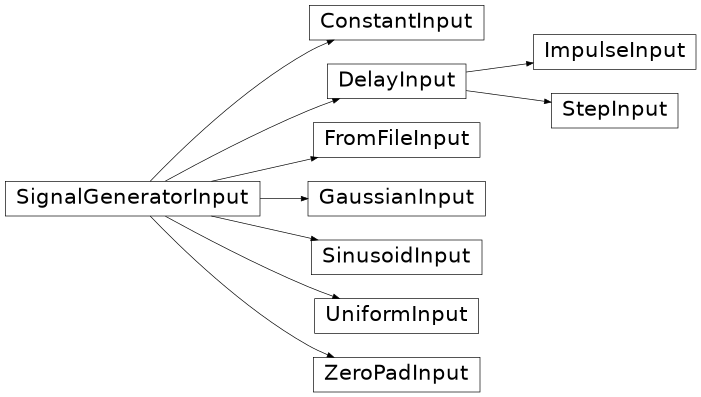
B-ASIC GUI Signal Generator Input Module.
Contains classes for signal generator input.
- class b_asic.sfg_gui.signal_generator_input.ConstantInput(*args, **kwargs)
Bases:
SignalGeneratorInputClass for graphically configuring and generating a
Constantsignal generator.- get_generator() SignalGenerator
Return the SignalGenerator based on the graphical input.
- class b_asic.sfg_gui.signal_generator_input.DelayInput(*args, **kwargs)
Bases:
SignalGeneratorInputAbstract class for graphically configuring and generating signal generators that have a single delay parameter.
- get_generator() SignalGenerator
Return the SignalGenerator based on the graphical input.
- class b_asic.sfg_gui.signal_generator_input.FromFileInput(*args, **kwargs)
Bases:
SignalGeneratorInputClass for graphically configuring and generating a
FromFilesignal generator.- get_generator() SignalGenerator
Return the SignalGenerator based on the graphical input.
- class b_asic.sfg_gui.signal_generator_input.GaussianInput(*args, **kwargs)
Bases:
SignalGeneratorInputClass for graphically configuring and generating a
Gaussiansignal generator.- get_generator() SignalGenerator
Return the SignalGenerator based on the graphical input.
- class b_asic.sfg_gui.signal_generator_input.ImpulseInput(*args, **kwargs)
Bases:
DelayInputClass for graphically configuring and generating an
Impulsesignal generator.- get_generator() SignalGenerator
Return the SignalGenerator based on the graphical input.
- class b_asic.sfg_gui.signal_generator_input.SignalGeneratorInput(logger, *args, **kwargs)
Bases:
QGridLayoutAbstract class for graphically configuring and generating signal generators.
- get_generator() SignalGenerator
Return the SignalGenerator based on the graphical input.
- class b_asic.sfg_gui.signal_generator_input.SinusoidInput(*args, **kwargs)
Bases:
SignalGeneratorInputClass for graphically configuring and generating a
Sinusoidsignal generator.- get_generator() SignalGenerator
Return the SignalGenerator based on the graphical input.
- class b_asic.sfg_gui.signal_generator_input.StepInput(*args, **kwargs)
Bases:
DelayInputClass for graphically configuring and generating a
Stepsignal generator.- get_generator() SignalGenerator
Return the SignalGenerator based on the graphical input.
- class b_asic.sfg_gui.signal_generator_input.UniformInput(*args, **kwargs)
Bases:
SignalGeneratorInputClass for graphically configuring and generating a
Uniformsignal generator.- get_generator() SignalGenerator
Return the SignalGenerator based on the graphical input.
- class b_asic.sfg_gui.signal_generator_input.ZeroPadInput(*args, **kwargs)
Bases:
SignalGeneratorInputClass for graphically configuring and generating a
ZeroPadsignal generator.- get_generator() SignalGenerator
Return the SignalGenerator based on the graphical input.
sfg_gui.simulate_sfg_window module
B-ASIC window to simulate an SFG.
- class b_asic.sfg_gui.simulate_sfg_window.SimulateSFGWindow(window)
Bases:
QDialogSimulation window.
- add_sfg_to_dialog(sfg: SFG) None
Add a signal flow graph to the dialog.
- Parameters:
- sfg
SFG The signal flow graph to add.
- sfg
- change_input_format(i: int, text: str) None
Change the input format selector.
- Parameters:
- iint
Input number to change for.
- textstr
Name of generator.
- simulate
pyqtSignal(*types, name: str = …, revision: int = …, arguments: Sequence[str] = …) -> PYQT_SIGNAL
types is normally a sequence of individual types. Each type is either a type object or a string that is the name of a C++ type. Alternatively each type could itself be a sequence of types each describing a different overloaded signal. name is the optional C++ name of the signal. If it is not specified then the name of the class attribute that is bound to the signal is used. revision is the optional revision of the signal that is exported to QML. If it is not specified then 0 is used. arguments is the optional sequence of the names of the signal’s arguments.
sfg_gui.simulation_worker module
B-ASIC GUI Simulation Worker Module.
Contains a class for simulation workers.
- class b_asic.sfg_gui.simulation_worker.SimulationWorker(sfg: SFG, properties)
Bases:
QObjectSimulation worker to enable running simulation in a separate thread.
- Parameters:
- sfg
SFG The signal flow graph to simulate.
- propertiesdict
Dictionary containing information about the simulation.
- sfg
- finished
pyqtSignal(*types, name: str = …, revision: int = …, arguments: Sequence[str] = …) -> PYQT_SIGNAL
types is normally a sequence of individual types. Each type is either a type object or a string that is the name of a C++ type. Alternatively each type could itself be a sequence of types each describing a different overloaded signal. name is the optional C++ name of the signal. If it is not specified then the name of the class attribute that is bound to the signal is used. revision is the optional revision of the signal that is exported to QML. If it is not specified then 0 is used. arguments is the optional sequence of the names of the signal’s arguments.
sfg_gui.util_dialogs module
B-ASIC GUI Utility Dialogs Module.
- class b_asic.sfg_gui.util_dialogs.FaqWindow(window)
Bases:
QDialog